

Lesson 5 of 11 · Learn · 10 min
1.5 Hands-on: turn on two-step sign-in
You'll work inside other people's businesses, so your account must be hard to break into. Lynk won't let you open a client's business until two-step sign-in is on.
You need: Google Authenticator or Microsoft Authenticator on your phone.
Steps
- 1
- 2
- 3
- 4
- 5
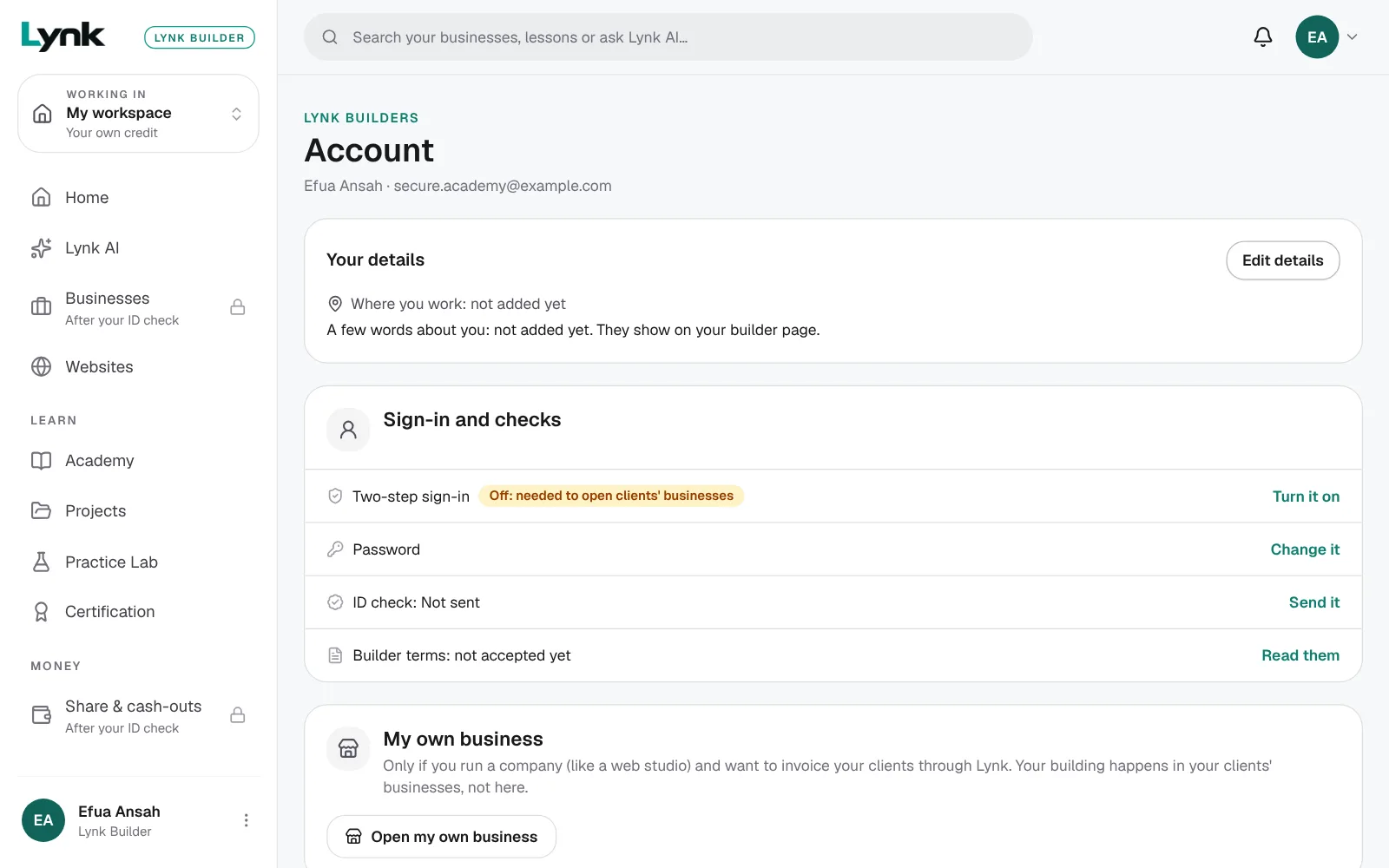
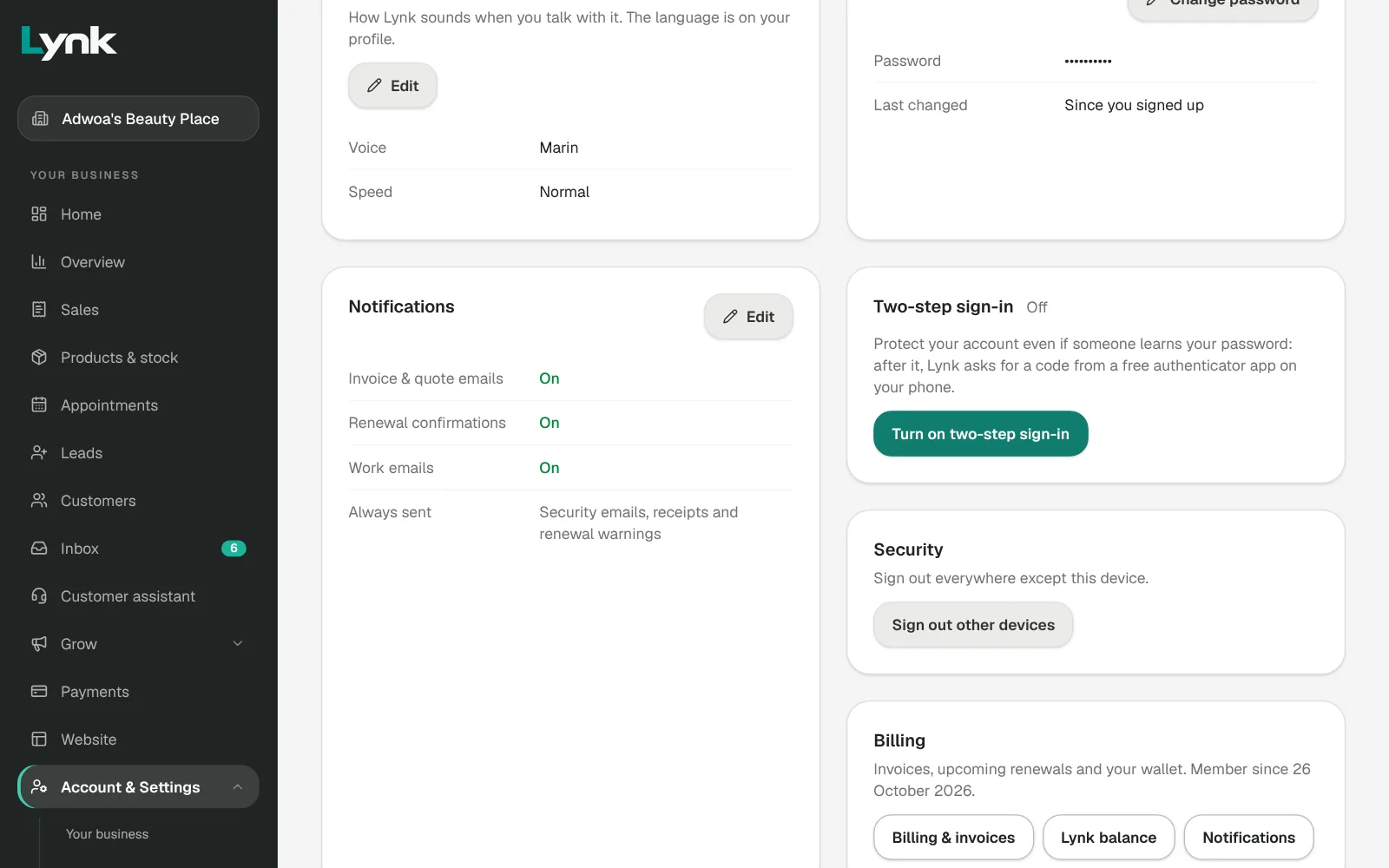
- In your Builder area, open Account. Under Sign-in and checks, next to Two-step sign-in, click Turn it on.
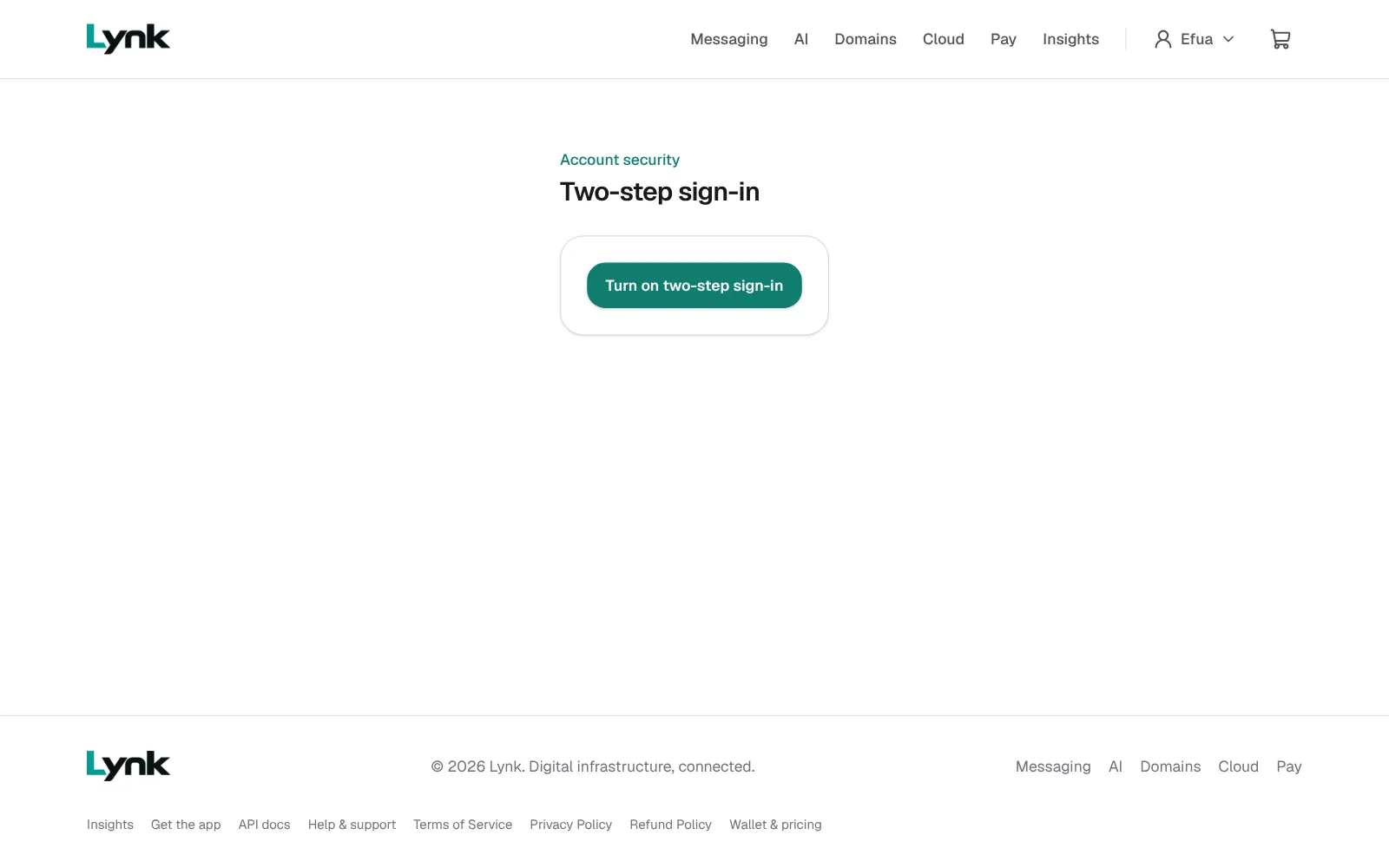
- Click Turn on two-step sign-in.
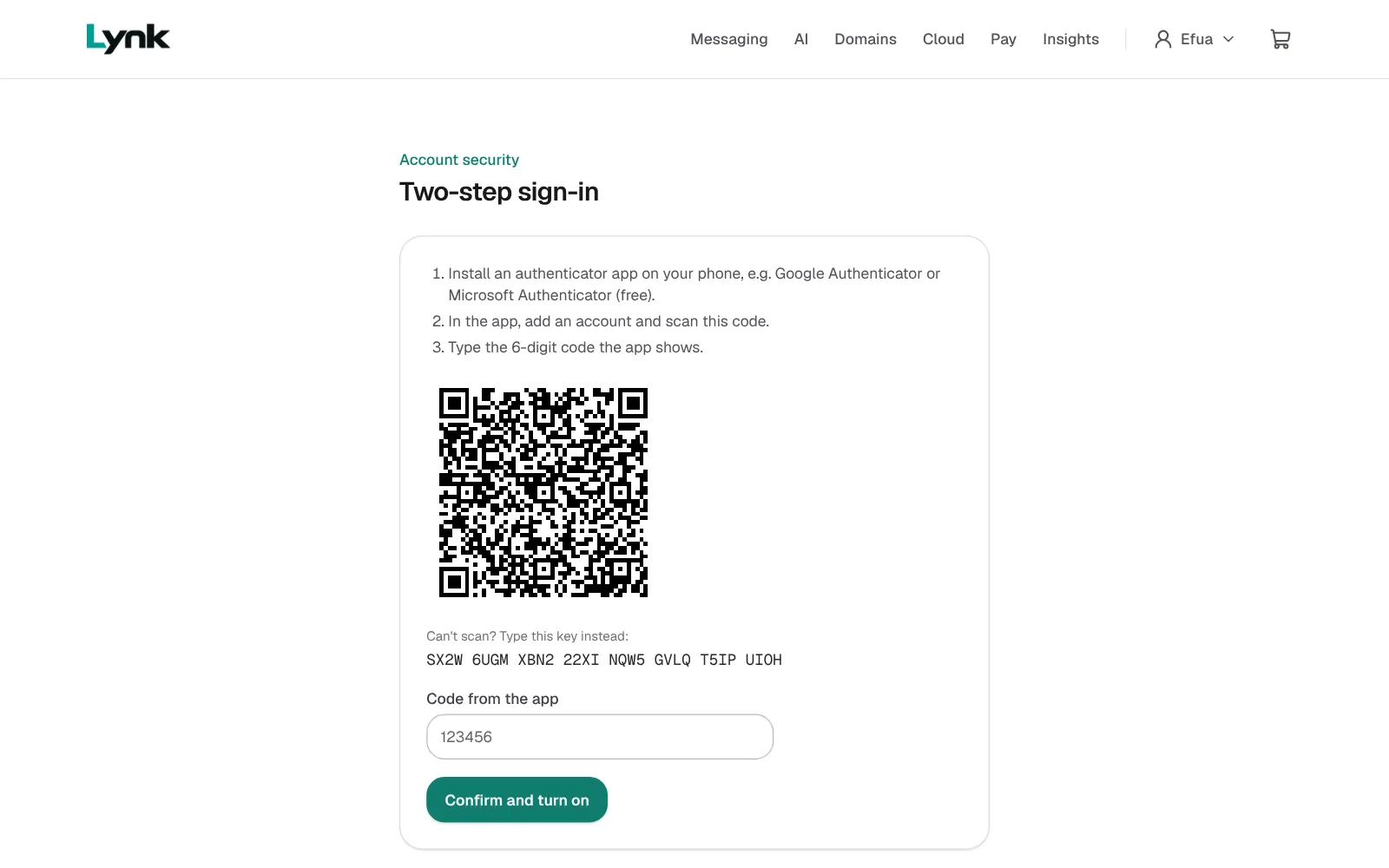
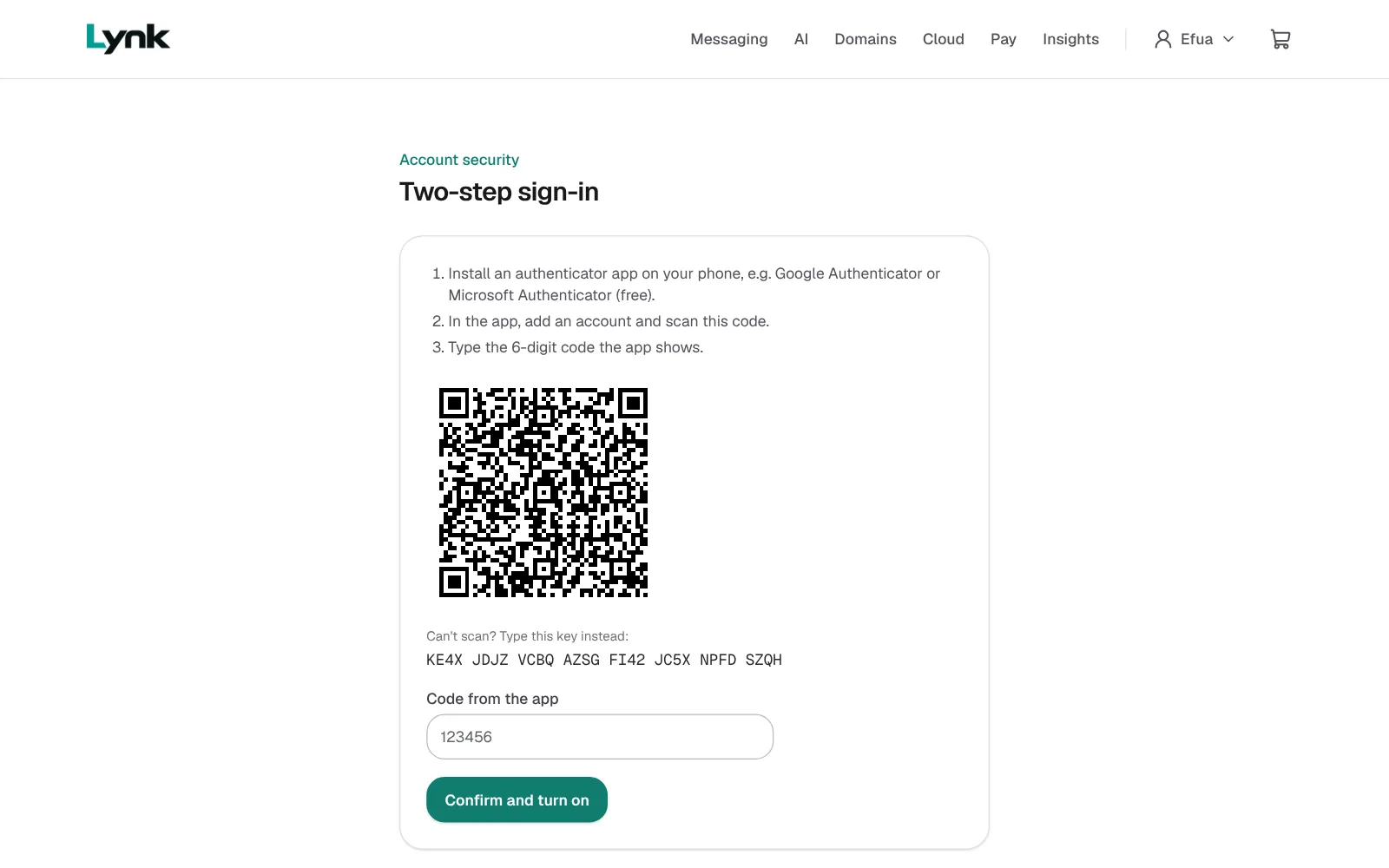
- Scan the square code with the authenticator app. (Can't scan? Use Can't scan? Type this key instead.)
- Type the 6-digit code from the app into Code from the app and click Confirm and turn on.
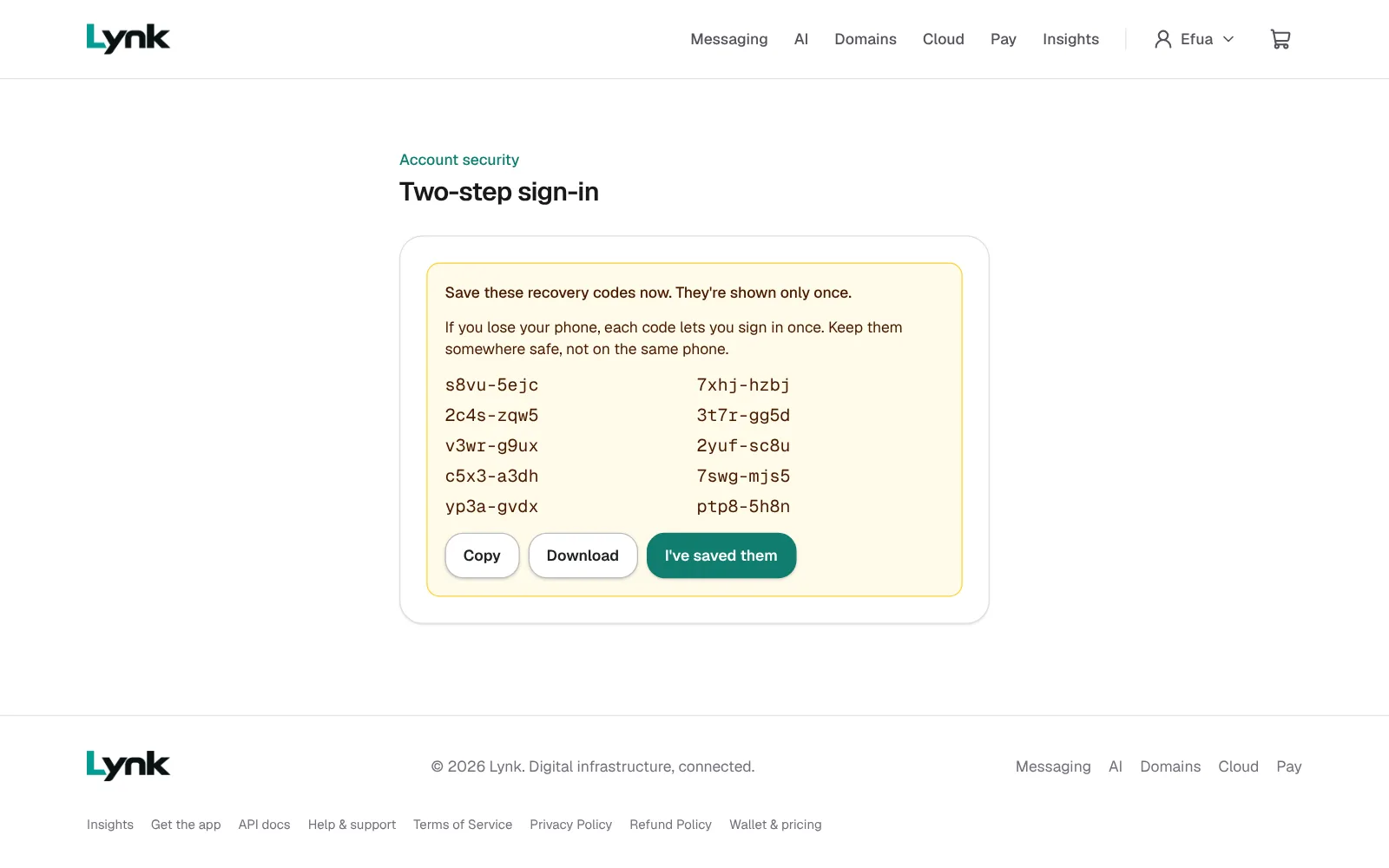
- Save your recovery codes somewhere safe, away from your phone. They're shown only once. Click I've saved them.
Never share your password, a code from your phone, or your recovery codes. Nobody from Lynk will ever ask for them.
When you're done, come back here and click Mark as done.
Next lesson
1.4 Your Builder areaSign in to save your progress and earn the certificate.